How Harry picks
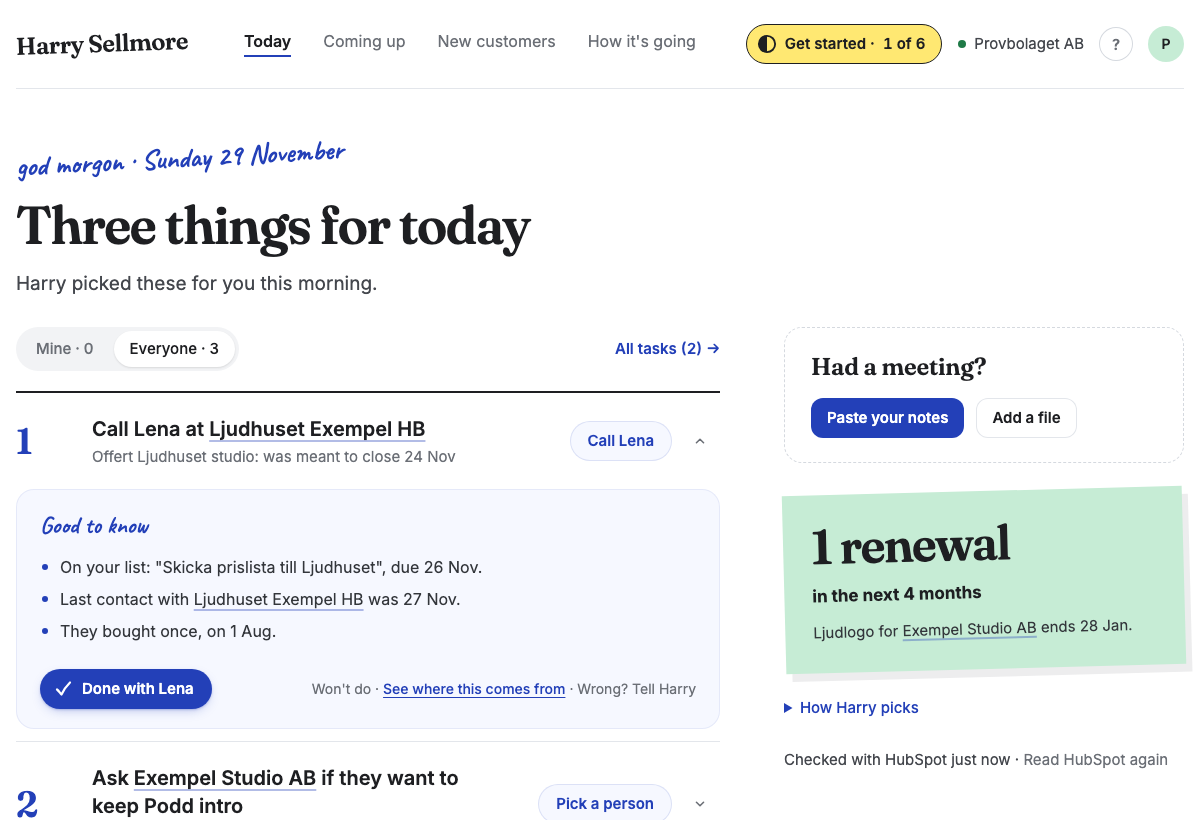
Harry uses fixed rules, in this order:
- A renewal reminder that is due.
- A sale past the date it was meant to close.
- A sale with nothing new for 14 days.
- A company with no contact for 30 days.
- A task past its due date.
Bigger sales come first within a rule. The numbers above are the defaults. In Settings, Today rules, an owner or admin can turn each rule on or off and change the two day thresholds (whole days from 1 to 3650). Press Save Today rules to apply the choices to everyone in the workspace, including the morning email. Reset to defaults selects the shipped choices; press Save to apply them. The rule order and five-card limit do not change. Turning a rule off does not complete or change anything in HubSpot.
Everyone can see which rules are on, and their days, on Today under How Harry picks.
The button on each row
When HubSpot links one person to the record and has their phone number, the button says Call and their name. With only an email address it says Write email. With nobody, or several people, it says Pick a person and lists who HubSpot links to it. A renewal with no end date gets Add date, which opens it in HubSpot.
Press the arrow at the end of a row to open it. Under Good to know Harry shows up to three facts from around the record, like the last time you were in touch or what they bought before.
- See where this comes from shows each HubSpot record behind the row and the line Harry read.
- Wrong? Tell Harry lets you mark a Good to know line as wrong. Harry stops using it.
A customer’s page
Press a customer’s name to open their page: on Today, on Coming up, on How it’s going, or in All tasks, which lists every open task with its customer. The page shows what they bought, what is coming up, the people you talk to and, under Last meeting, the newest meeting in HubSpot with what was written about it. Harry reads that meeting from HubSpot each time you open the page and keeps no copy.
Done and Won’t do
Press Done (or Done with and the person’s name) when you have dealt with it, or Won’t do when you are not going to. Either one first offers a note, if you want to leave one. The note stays in Harry for you and your admins. HubSpot gets none of it.
- A task is marked completed in HubSpot, whichever of the two you press.
- Done on anything else hides it from Today for 30 days, or until it changes in HubSpot. Nothing is written to HubSpot.
- Won’t do on a company or sale skips it for outreach: it stays off Today until you bring it back, and no unrelated HubSpot change undoes that. What you skipped is listed in Settings, Your data, under Skipped for outreach, where Bring back puts one back on Today.
A bar with Undo shows for a few seconds. Tasks you finish also appear under Done today, and there you can press Undo for up to an hour after Harry marked one done. After that the row offers Your tasks in HubSpot, which opens that task in HubSpot.
Mine and Everyone
The buttons Mine and Everyone above the list switch between your own tasks and the whole list. Mine shows up to five of your own tasks, the same ones your morning email has, even when the team’s five are other things. Everyone shows the team’s five. To give a task to someone, see Giving a task to someone.
All tasks at the top right of the list opens every open task, late ones included, due within about four months. The number beside it counts them, the ones on today’s list too.
News about your customers
Under the list on Today, Harry shows which of the customers you already have are hiring, newest first. Each line says where it comes from.
A customer who is hiring may be busy enough to need outside help, so it can be a good time to call. Harry takes the 25 customers you sold to most recently that have an org-nr in your HubSpot, and looks for their job ads on Platsbanken, Arbetsförmedlingen’s job site. An ad counts when it is still open and was posted in the last 30 days. Each customer with news gets one line, like “Exempel AB is looking for two people.”, with the day they posted and a link to the ad.
Harry picks and words the news with fixed rules. No AI reads, decides or writes anything here.
Remind me to call
Press Remind me to call and Harry shows what it would add to your HubSpot: a task due today, “Call Exempel AB: they are hiring”, on that company, with the job ads in it so you can see why. Nothing is added until you press Yes, add it. Then the task is in your HubSpot, due today, and the row says Reminder in HubSpot, with Open in HubSpot beside it, until you mark the task done there. Cancel drops it. If Harry can’t read all your HubSpot tasks at the moment, the row says so instead of offering the button, because Harry can’t tell whether a reminder is there already.
When the list is empty
If nothing is new, the section says so and which customers Harry looked at. If Platsbanken didn’t answer, the section says so, with Try again. It never says nothing is new when it couldn’t look. A reminder still waiting for your yes comes back with the job ads once Platsbanken answers again. If it says none of your customers has an org-nr, import their invoices: Harry reads the org-nr from them.
What leaves Harry
For job ads, Harry sends only the org-nr and a date to Arbetsförmedlingen when you open Today, and keeps the ads for a few hours. A sole trader’s number never goes.
What’s coming up next
Beside the list, a green box counts the renewals that end in the next four months and names them. The whole list is on Coming up.
Nothing for today
When nothing is late or due, the heading says Nothing for today. If a renewal ends in the next four months, a green note under it says which one comes next and when. All tasks still has the tasks that are due later.
Had a meeting?
Paste your notes opens an empty box for your meeting notes, and Add a file lets you pick a notes file. On a phone it is one line under the list. What happens next is in Adding meeting notes.
Keeping it fresh
Harry checks HubSpot for changes when you open Today. The line at the side says when it last did. Press Read HubSpot again if you just changed something in HubSpot and want to see it now.
Sometimes HubSpot doesn’t answer, or turns Harry away for a while. Then a yellow line at the top says “Harry can’t reach HubSpot right now. This is the list from 07:02.”, with the time of the list you are looking at. The list stays as it was. Harry can’t write to HubSpot either, so Done and the yes buttons say so if you press them, and nothing changes there. Press Try again to ask HubSpot once more; the yellow line goes as soon as it answers.
AI wording
The Good to know lines come from rules and your HubSpot, not from AI. When Harry offers it, the owner can let AI put them into plainer words under How Harry picks. Harry checks every reworded line against the fact it came from, and shows its own line when anything differs. A line with an email address, a web address or a phone number is never sent.
NextGiving a task to someone