Before you start
Put the invoices you have sent, as PDFs, in one folder. Invoices saved straight from your invoicing program read best. A scanned paper invoice has no text in it, so Harry can’t read it on its own (more on that below).
Harry reads up to 100 files at a time. A file can be at most 10 MB and 20 pages. If you have more invoices than that, import them in a few rounds.
Check one invoice first
The first time, click First time? Check that Harry reads your invoices on the Invoices card and pick one invoice. Harry shows what it found: the invoice number, customer, invoice date, amount before VAT, currency, the customer’s org-nr and the contact.
If something is wrong or missing, click Wrong? or Show Harry, then click the right value in the text of your invoice. Harry finds the word printed before it, and you press Save. From then on Harry reads your invoices with that word. You can also tick a box to share the word with Harry for everyone. Only the word is shared, nothing from your invoice.
Read the invoices
In the Get started list, press Add invoices. Or click the round button at the top right and choose Import. Then drop the folder on the Invoices card, or click Choose files. To pick a whole folder, click or a folder.
Keep the tab open while Harry reads. The reading runs on your computer, and nothing is uploaded while it does.
When it is done, Harry lists any file it could not read and says why. Credit notes are left out on purpose.
When Harry can’t read a file
For a scan, or a layout Harry doesn’t know, Harry can ask an AI model to read it. Under the list of those files you see a button, Yes, let AI read and the number of files. Nothing goes to AI before you click it, and only the files on that list go.
Harry sends one file at a time to an AI model run by Cloudflare, with logging turned off. It sends the file’s text, at most 30,000 characters. If that isn’t enough to find the customer or the invoice number, or the file is a scan, it sends pictures of the first two pages instead. If the pictures still leave out the customer or the number, Harry asks once more. So one file may go to the AI up to three times.
Harry then checks what comes back. For a file with text, every value has to be in that text, or Harry drops it. For a scan, the AI first writes out what the pages say, and the values are checked against that, so Harry asks you to compare every value with the PDF. If only the total and the VAT are printed, Harry works out the amount before VAT from them. You check everything in the review before it goes to HubSpot. If you don’t click, those files are left out and nothing from them goes anywhere.
After an AI read, Harry may ask Read the next ones without AI? It can remember where things are printed on your invoices, so the next ones are read on your computer.
Check the suggestions
Give the import a name if you like, then press Review. Harry first looks in your HubSpot for companies and contacts you already have, so nothing is added twice.
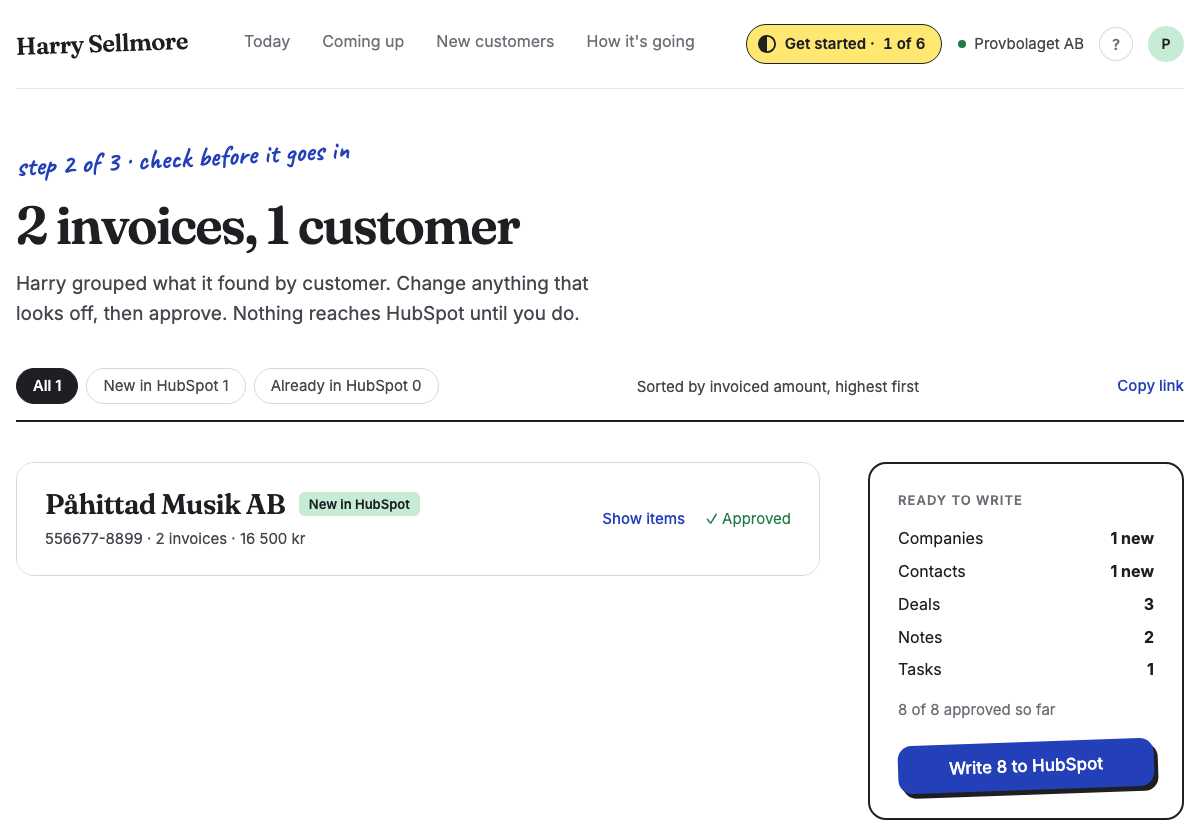
Harry groups everything by customer, highest invoiced amount first. For each invoice it suggests:
- the customer company, with its org-nr when the invoice has one
- a contact, only when the invoice names one
- one won sale per invoice, with the amount before VAT
- the rows of the invoice as services on that sale, when they add up to the amount
- a note with the lines worth keeping
- for a licence with an end date: a renewal sale, a note saying where the end date comes from, and a task to remind you 30 days before it ends
In HubSpot a sale is called a deal, so that’s where you find them.
A licence with no end date goes on the Coming up tab under Missing a date, where you say when it ends.
You can change any field, Reject what you don’t want, or press Approve company to tick a whole customer at once. When Harry isn’t sure whether a customer is one you already have, it asks you: Link to the one in HubSpot, or Create a new company.
If an invoice is in a currency your HubSpot doesn’t have, Harry says so at the top before you write anything, and tries to add the currency when you approve. If your HubSpot can’t add it (HubSpot Free has one currency), those sales go in converted at the ECB rate of the invoice date, or of the last day before it that has one. For an invoice dated today or later, Harry waits until that day’s rate is out, and the review says so. A note on the sale says how it was converted.
Write to HubSpot
Press Write to HubSpot (the button says how many). Afterwards you see what was added, what was Already in HubSpot and what was Added before. Importing the same invoices again adds nothing twice.
Each new company, contact and sale gets one plain note in HubSpot saying where it came from, like “Added by Harry on 9 October 2026 from your invoices, after you said yes.”
If something wasn’t added, Harry says why. Press Fix it to go straight to it, then Try again. Right after something fails, Try again waits half a minute: HubSpot may have added it anyway, and it takes HubSpot that long to show it to Harry, so nothing goes in twice.
NextImporting your mailbox