You need a computer for this. On a phone, the Import page and the Get started list ask you to open Harry on a computer. In the Get started list you can press Email me a link to get an email at your own address with a link to open on your computer.
Export your mail
Harry reads an mbox file, a common format for a saved mailbox. In Thunderbird:
- Install the add-on ImportExportTools NG.
- Right-click the Inbox and choose Export folder. Save the file.
- Do the same for Sent.
Sent matters as much as the Inbox, because it shows who you write to. Import each file on its own. An email Harry has already added is not added twice.
Read the file
In the Get started list, press Add your mailbox. Or click the round button at the top right and choose Import. Then drop the file on the Email export card, or click Choose file.
Harry reads the whole file on your computer. Nothing is uploaded while it does. Big mailboxes take a little while.
Pick people
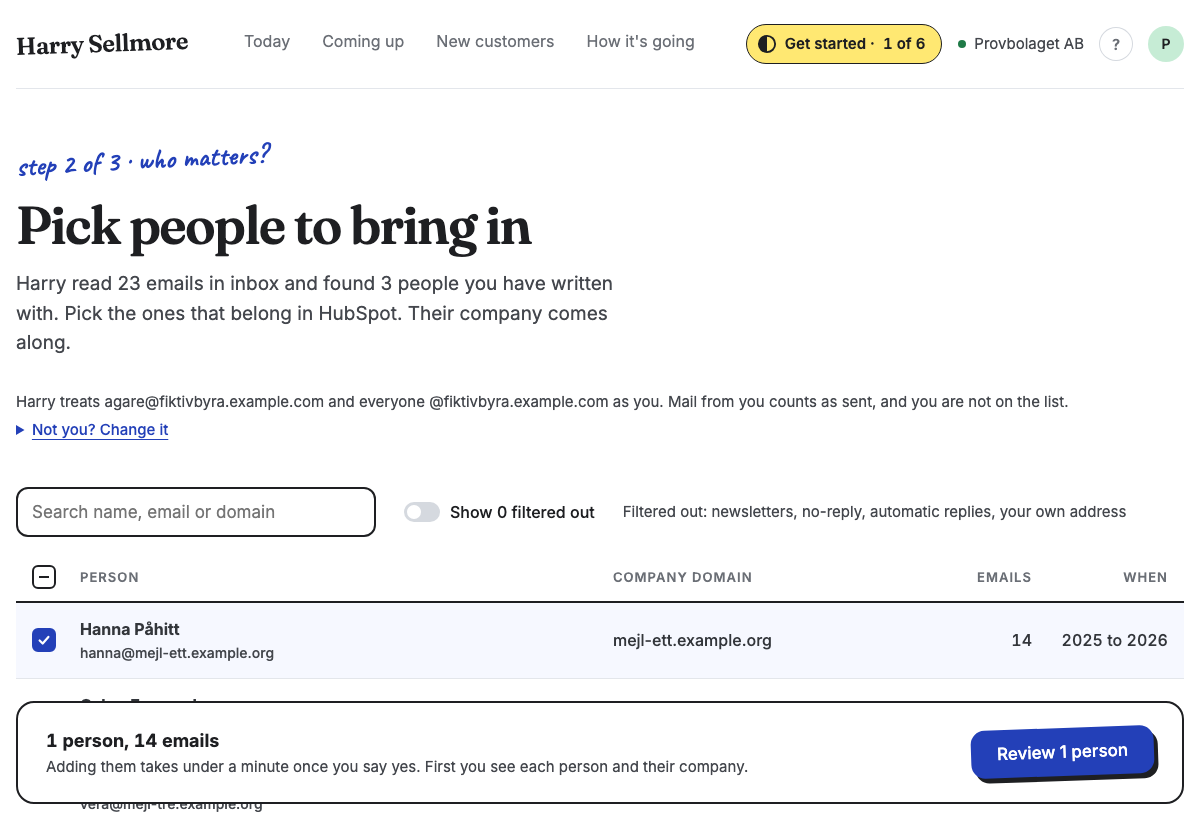
Harry shows everyone you have exchanged emails with, most emails first. Tick the people who belong in HubSpot: customers, suppliers, partners. Their company comes along, found from their work email address (not from a personal one like Gmail). One import takes up to 250 people. Bring in the rest in a second import.
Some senders are already filtered out: newsletters, no-reply addresses and automatic replies. Turn on the Show … filtered out switch to see them, and press Include anyway on any that are real people. Your own address is left out too, but not in that list: if Harry treats someone else’s address as yours, use Not you? Change it.
At the top Harry says who it treats as you. If the mailbox is a colleague’s, or you use more than one address, click Not you? Change it, type the addresses (or a domain like @exempelbyran.se for the whole team), and press Read again.
Choose which emails
Under Which emails you pick one of two:
- Last 12 months, and a little history: everything from the last 12 months, plus the newest 25 emails per person from before that. This is the one Harry recommends.
- Everything: every email with those people.
Harry shows how many emails each choice brings before you pick. Then press Review.
Check and add
The review shows each person with their company and how many emails they have. When Harry isn’t sure which company someone belongs to, it asks you. If it only knows the email domain, type the company’s name, or pick No company for now.
Your emails are still only on your computer at this point. When you press Add (the button says how many people and emails), the emails with the people you said yes to go to Harry and on into HubSpot. Emails with only other people stay on your computer.
For each email, HubSpot gets the subject, the date, who sent it, the addresses it went to (up to 20) and the first lines. Attachments never go.
Harry adds the emails in small batches, so HubSpot keeps up. The screen says about how long it takes. Once your emails have reached Harry, closing the page doesn’t lose them: the next time you open Import, press Continue adding emails. If the page closes while the emails are still being sent to Harry, the rest never leave your computer. Read the file again and say yes to those people; what is in HubSpot already is not added twice. Right after something fails, Try again waits half a minute: HubSpot may have added it anyway, and it takes HubSpot that long to show it to Harry, so nothing goes in twice.
HubSpot Free holds up to 1,000 contacts. The review shows how many you have and how many this import adds, so you can pick with that in mind.
Each new person and company Harry adds gets one plain note in HubSpot saying where it came from, like “Added by Harry on 9 October 2026 from your email, after you said yes.”
NextInviting a colleague