The Get started list
Until Harry is set up, a yellow button at the top of every page says how far you are, for example Get started · 3 of 6. Click it for the list. A new workspace opens on it.
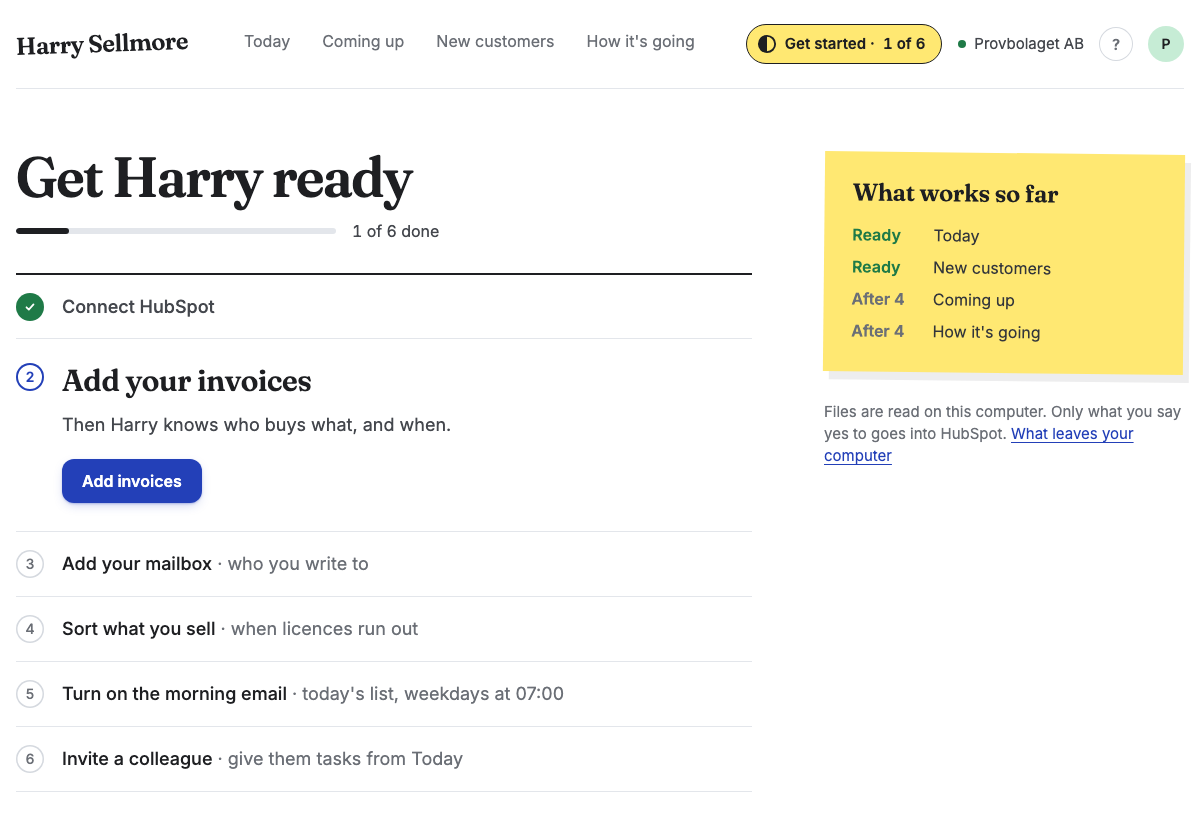
The six steps:
- Connect HubSpot. Then Harry can read your customers and make your list for Today.
- Add your invoices. Then Harry knows who buys what, and when.
- Add your mailbox. Then Harry knows who you write to.
- Sort what you sell. Then Harry can tell you when licences run out and which groups sell best.
- Turn on the morning email. Then today’s list is in your inbox at 07:00 on weekdays.
- Invite a colleague. Then you can give them tasks from Today.
Each step has one button that opens the right page. A step is ticked off by itself once it’s done, for example when your invoices are in HubSpot.
You can skip the mailbox and the morning email. A skipped step counts as done. The skip is for the whole workspace: it stays skipped on your other computers and phone, and for your colleagues too. Press Don’t skip to bring it back.
Connecting HubSpot and inviting someone are the owner’s to do. An admin sees the same list, with who to ask. On a phone, the mailbox step says it needs a computer. Press Email me a link and Harry sends an email to your own address, the one you sign in with, with a link to the Get started list. Open it on your computer and sign in as usual. You can ask for the link three times a day.
Beside the steps, What works so far shows which of the four tabs are ready and which step each one waits for.
When all six are done, the yellow button and the list go away. You can still add files later: click the round button at the top right and choose Import.
Finding your way
Harry has four tabs, each named after a question:
- Today: who do I call?
- Coming up: what runs out soon?
- New customers: who else could buy?
- How it’s going: are we doing OK?
On a phone the four tabs sit in a bar at the bottom of the screen.
Everything else is behind the round button at the top right, with your initials on it: Settings, Import, Help, Switch workspace when you are in more than one, and Log out. On a phone it opens a full screen, with Settings’ sections listed straight away.
The small ? at the top of each screen opens the guide for that screen.
Harry asks before it changes HubSpot
On Coming up, New customers, What you sell and the customer news on Today, Harry shows a card before it adds or changes anything in your HubSpot: Harry will do this in your HubSpot, with each change as a numbered step. Under the steps are Harry’s own notes in quotes, word for word as they go into HubSpot, and what else comes with the changes. The button says Yes, add it when Harry adds something new and Yes, do it when it changes something you already have. Cancel leaves HubSpot as it is. On a phone the card comes up from the bottom of the screen.
A note carries the day Harry writes it. If you leave a card open past midnight, the yes button goes and the card says the date has changed: press Cancel and ask again, and the new card shows today’s date. If only part of it went in, Try again adds the rest, and its notes name only what goes in then, with that day’s date.
When it’s done, a green line says so, with Open in HubSpot. If HubSpot doesn’t take all of it, the card turns red and says Not finished in HubSpot, and why. Try again never adds anything twice.
Imports have a review of their own, where you approve each suggestion before Write to HubSpot. Done on Today marks a task completed in HubSpot straight away, because pressing it is your yes.
Before your first import
Five steps. You can do all of them on your own.
-
Make a HubSpot account
Go to hubspot.com and sign up. The free plan is enough. The account is yours: if you stop using Harry, you keep it and everything in it.
-
Set the currency to SEK and the time zone to Stockholm
HubSpot starts on US dollars. In HubSpot, click the settings icon at the top, then Account Defaults. The time zone is on the General tab and the currency on the Currency tab. If some of your invoices are in EUR or USD, add those currencies on the Currency tab too.
-
Connect HubSpot to Harry
In Harry, click the round button at the top right, choose Settings, then HubSpot, and press Connect HubSpot. HubSpot opens, asks which account to use and shows what Harry may do there. Say yes, and HubSpot sends you back to Harry.
HubSpot shows harrysellmore.se and says it hasn’t reviewed Harry yet. That’s expected until Harry is listed in HubSpot’s app marketplace. The permissions it shows are the same as the list in Harry’s Settings.
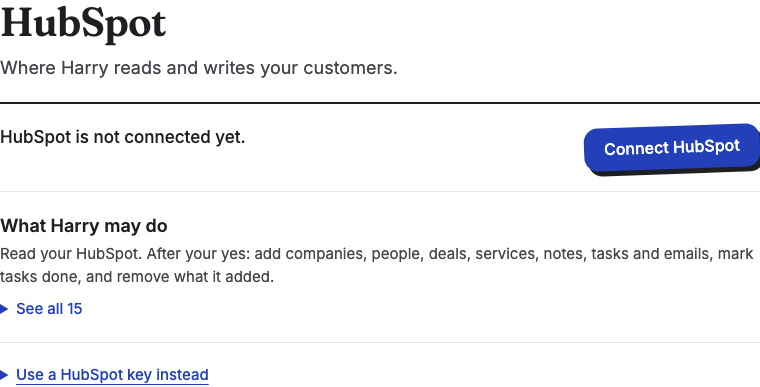
When it works, the top of every page says HubSpot connected.
If HubSpot stops letting Harry in later, for example because the key was deleted there, the top of the page says HubSpot needs a new key. Click it to get to Settings, then connect again or save a new key.
Harry can also use a key you make yourself. In HubSpot, go to Development, then Keys, then Service keys, and create a key. HubSpot asks which permissions it should have. Harry’s Settings has the list under HubSpot, Use a HubSpot key instead, with a Copy button next to each one: search for it in HubSpot and tick it. Then paste the key in Settings under Use a HubSpot key and press Save. Harry checks it straight away. If a permission is missing, it says which one and what won’t work without it.
-
Save your Inbox and Sent mail as files
In Thunderbird, add ImportExportTools NG (Tools, then Add-ons). Right-click Inbox and choose Export folder. Do the same for Sent. Sent matters as much as Inbox, because it shows who you write to. Harry needs no password and never sees your live mailbox.
-
Put your invoice PDFs in one folder
PDFs made by your invoicing program read best. A scanned paper invoice has no text Harry can read on your computer. Harry tells you which ones are scanned, and can ask AI to read them if you say yes.